Microsoft's Visual Web Developer 2010 Express (VWD 2010 Express), by default does not come with a built in unit testing solution. However the ability is there to use unit tests with the Express version as can be seen when creating a new MVC project.

Tech spec stuff:
Microsoft Windows 7
Microsoft Visual Studio 2010 Express, Version 10.0.40219.1 SP1
Microsfot .NET Framework Version 4.0.30319 SP1
Getting started with xUnit
xUnit is a "developer testing framework, built to support Test Driven Development (TDD)". There are other unit testing frameworks available (MSTest, nUnit, etc.). There are pro's to each and some better than others but xUnit is pretty straightforward to get up and running with the VWD 2010 Express version.
Download and Install xUnit
The xUnit project can be found at: http://xunit.codeplex.com/. Downloads are available from http://xunit.codeplex.com/releases/view/62840.
Download the recommended version (currently 1.8 at time of writing), which is just a zip file and just extract the files to a suitable directory e.g. C:\Program Files\xunit-1.8.

Run the xunit.installer file.
 This will execute the installer utility for xUnit.net where options can be selected to integrate xUnit with various environments. Select the required options (e.g. Windows Explorer integration, MVC2 templates, MVC3 templates), then click apply.
 Explorer and/or VWD Express may need to be re-started.
Creating a Test Project
Now, when starting VWD Express 2010 and creating a new project, the option to "Create a unit test project" should be available to be checked (compare to first image where option is unavailable).
The test project name and test framework should be autofilled as shown in the following image.


Creating a Simple Test
To demonstrate the xUnit GUI, this is just a simple example test, (2 + 2 should equal 4) based on the example from "How Do I Use xUnit.net" at http://xunit.codeplex.com/wikipage?title=HowToUse&referringTitle=Home.
A new class is created in the test project.

The line "using Xunit;" needs to the added for the class along with the actual code for the test:

Save the file and build the project. Note where the dll for the test project was created.



The failed test is shown in the output window.

Tech spec stuff:
Microsoft Windows 7
Microsoft Visual Studio 2010 Express, Version 10.0.40219.1 SP1
Microsfot .NET Framework Version 4.0.30319 SP1
Getting started with xUnit
xUnit is a "developer testing framework, built to support Test Driven Development (TDD)". There are other unit testing frameworks available (MSTest, nUnit, etc.). There are pro's to each and some better than others but xUnit is pretty straightforward to get up and running with the VWD 2010 Express version.
Download and Install xUnit
The xUnit project can be found at: http://xunit.codeplex.com/. Downloads are available from http://xunit.codeplex.com/releases/view/62840.
Download the recommended version (currently 1.8 at time of writing), which is just a zip file and just extract the files to a suitable directory e.g. C:\Program Files\xunit-1.8.

Run the xunit.installer file.


Creating a Test Project
Now, when starting VWD Express 2010 and creating a new project, the option to "Create a unit test project" should be available to be checked (compare to first image where option is unavailable).
The test project name and test framework should be autofilled as shown in the following image.

Clicking OK will create the new project along with a project for the unit tests, which will contain MVC unit testing templates.

To demonstrate the xUnit GUI, this is just a simple example test, (2 + 2 should equal 4) based on the example from "How Do I Use xUnit.net" at http://xunit.codeplex.com/wikipage?title=HowToUse&referringTitle=Home.
A new class is created in the test project.
The line "using Xunit;" needs to the added for the class along with the actual code for the test:

Save the file and build the project. Note where the dll for the test project was created.

In this case the test dll is created in:
d:\dev\projects\MvcApplication2\MvcApplication2.Tests\bin\Debug\MvcApplication2.Tests.dll.
Using xUnit GUI
Locate the xunit.gui file which should be where the zip was extracted too earlier on. If using .NET framework v4, "xunit.gui.clr4" needs to be used to run the tests otherwise an error about loading the assembly may be thrown, along the lines of:
"Could not load file or assembly 'sometest.dll' or one of its dependencies. This assembly is built by a runtime newer than the currently loaded runtime and cannot be loaded."
To run the tests select "Assembly > Open" and browse to where the tests dll is.

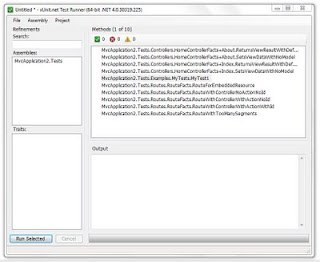
Once opened each test should be listed within the Methods window. These tests include the MVC framework tests and also the example test created above.

Clicking Run Selected (or Run All if no individual test is created) will run the tests. An icon will appear by the tests in the method window and any failure results will be displayed in the output window.
Showing an example of a failed test, the line Assert.Equal(4, 2+2) is changed to Assert.Equal(4, 2+3), which will blatantly fail as 2+3 does not equal 4.

The failed test is shown in the output window.
Comments
Post a Comment